Headbutt Trees
Author(s): MrHam88.
Research: pret/pokeheartgold.
This page is a guide to Headbutt Trees in Pokémon HeartGold and SoulSilver. It covers how the game determines which Pokémon appear, how encounter sets are selected for different trees, and how to edit this data using DSPRE or direct hex editing.
In HGSS, Headbutt encounters are map-dependent. HGSS uses predefined data files for each map header that list specific encounter-capable trees and their associated Pokémon.
Glossary
Terminology in this area is different across DSPRE, decompilation projects and public community resources. This quick glossary shows the specific terms used in this guide (generally aligned to DSPRE):
- Encounter Set: One of the three tables of 6 Pokémon (Common, Rare, or Special) available for a map header.
- Tree Group: A logical grouping of coordinates (up to 6) that all represent the same "physical" tree on the map.
- Tree (Coordinates): The specific X/Y coordinates on a map that can be headbutted to trigger an encounter.
Technical Prerequisites: Map Permissions
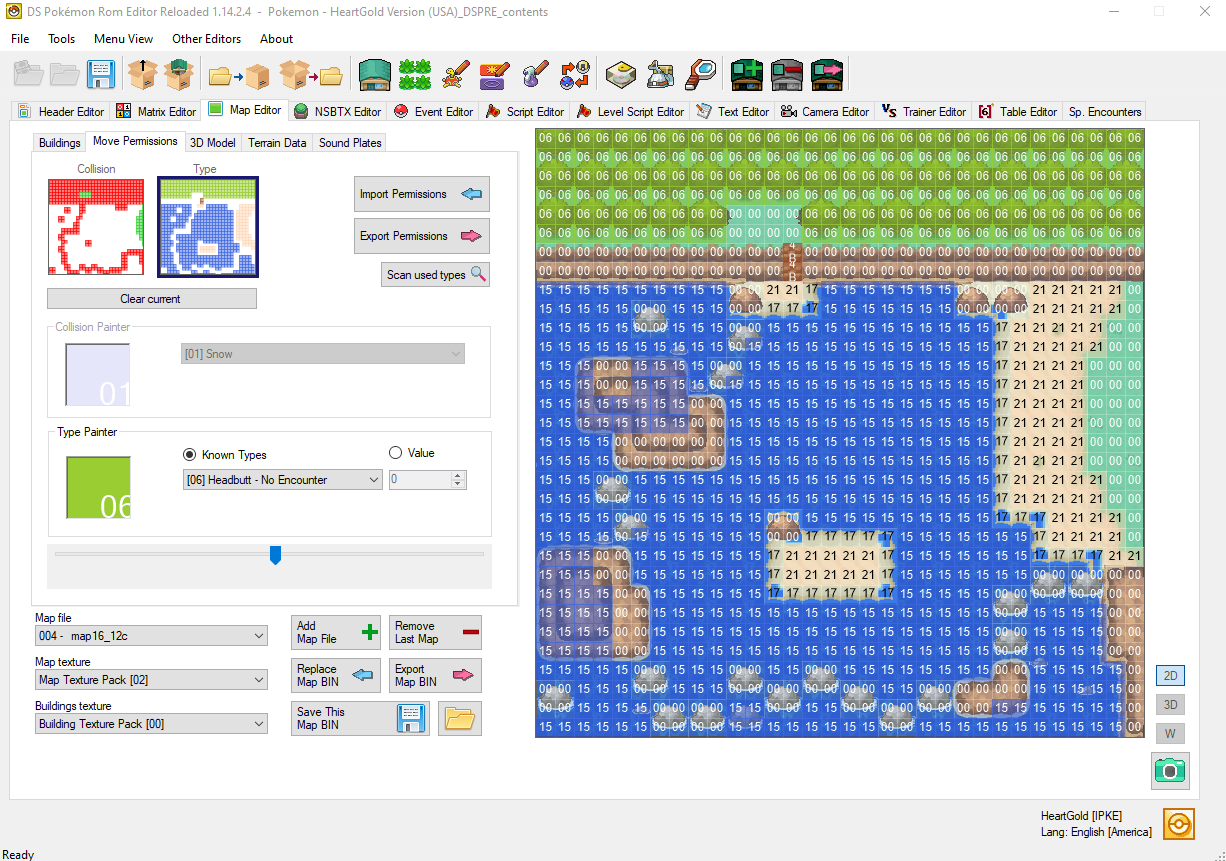
Before a tree can be headbutted, the map itself must allow the interaction. This is driven by Map Permission Data:
- Permission Type: Must be
0x06. - Permission Collision: Must be
0x80(Blocked).
If a tile has these properties, the field move interaction is available. When it is initialised, the game then checks the facing coordinates against the map's Headbutt tree groups to determine if an encounter should occur.
Encounter Set Logic
Every map that supports Headbutt has three distinct encounter tables (called Groups in community documentation, such as Bulbapedia). Which Encounter Set is used depends on the Tree Group being headbutted and the player's Trainer ID.
While community documentation often implies that encounters are shared across multiple locations (e.g., "all mountain areas share Group A"), this is a stylistic choice by the original developers and not a technical constraint. In the game's data, each Map Header has its own unique set of encounters.
| Encounter Set Name | Usage | |
|---|---|---|
| A | Common | The most frequent encounter set for most trees. |
| B | Rare | A secondary, rarer encounter set for some trees. |
| C | Special | Exclusive to Special Tree Groups, often containing unique species. |
How the game chooses an Encounter Set
For Normal Tree Groups (the majority of trees on a map), the game determines whether to use Encounter Set A, Encounter Set B, or no encounter at all based on a combination of:
- The last digit of the player's Trainer ID (
ID % 10). - The specific (multiple) Tree Group Index (its position in the map's coordinate list).
This logic ensures that a Tree Group that is "rare" for one player might be "common" or "empty" for another, introducing randomisation.
For Special Tree Groups, the game bypasses this logic entirely. If a Tree Group is defined in the map's Special list, it will always trigger an encounter from Encounter Set C. These are typically used for trees blocked by late- or post-game terrain obstacles (requiring Waterfall or Rock Climb to access).
The Slot Weighting System
Each of the three encounter sets (A, B, and C) contains exactly 6 Pokémon slots. When a Headbutt encounter is triggered, the game selects a slot based on a fixed probability distribution hardcoded into the game.
| Slot | Probability |
|---|---|
| 0 | 50% |
| 1 | 15% |
| 2 | 15% |
| 3 | 10% |
| 4 | 5% |
| 5 | 5% |
Coordinate Groups & System
In HGSS a single "logical" tree on the map can be headbutted from multiple sides. To account for this, the game allows each Tree Group to contain up to 6 coordinate pairs. If the player headbutts a tile that matches any of the coordinates in a group, that group's encounter logic is triggered from any given visible "tree".
- Normal Tree Groups: Subject to the Trainer ID logic (Common (A) or Rare (B) Encounter Sets).
- Special Tree Groups: Always use the Special (C) Encounter Set.
If a tree's coordinates are not present in either list for the current map, that tree is empty and will never yield an encounter.
Editing with DSPRE
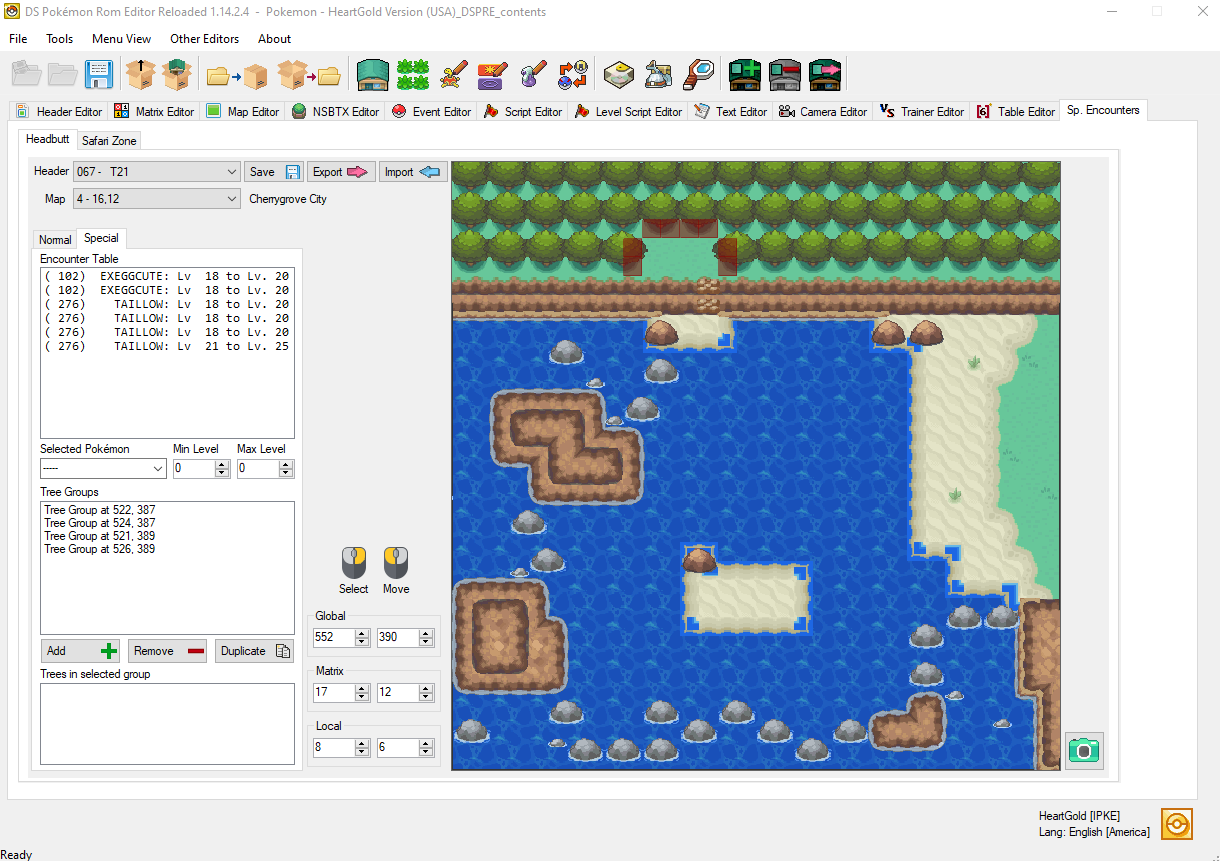
Headbutt encounters can be edited using DS Pokémon Rom Editor (DSPRE). The editor is located under Sp. Encounters in the main toolbar, then the Headbutt tab.
Interface Overview
- Map Header: Select the map you wish to edit (to find a specific location, use the Header Editor location search, and make a note of the header ID).
- Map Selection: Used to select the map file (Map ID and matrix coordinates are part of the combo box for selection, and location name is a read-only piece of text).
- Map Preview: Displays the rendered map file associated with the selected header (visible in the preview to the right). It shows Tree Coordinates as blue squares (Normal Tree Groups) and red squares (Special Tree Groups).
- Encounter Slots: 18 slots total, accessible through sub-tabs:
- Normal sub-tab: Lists 6 Common encounters followed by 6 Rare encounters (Encounter Sets A and B), both in index order.
- Special sub-tab: Lists all 6 Special encounters (Encounter Set C) in index order.
- Encounter Details: Edit the species and levels for the selected slot. These fields become usable once a slot is selected.
- Tree Groups: Lists the encounter-capable Tree Groups. Each entry displays the coordinates of the first tree coordinates defined within that Tree Group.
- The list reflects either Normal or Special Tree Groups depending on which sub-tab is selected.
- Select a Tree Group to view and edit all 6 of its individual tiles in the Trees in Group panel.
- Coordinates can be set using global or Local Coordinates (DSPRE automatically translates these to Global for the user).
- Unused coordinate slots are shown as
65535 x 65535(global coordinates).
If the dynamic headers patch is applied to a HGSS ROM in DSPRE, new headers will not have a new NARC file created for Headbutt data automatically. Manual creation of the new NARC file (within data/a/2/5/2) would be needed to add Headbutt Tree encounters to headers beyond the games' original count.
Step-by-Step: Editing an Encounter
- Open your ROM in DSPRE and navigate to Sp. Encounters -> Headbutt.
- Select the Map Header you want to modify.
- Choose the appropriate sub-tab (Normal or Special).
- Select the slot you wish to modify from the Encounter Slots list.
- All 18 slots are always present; editing an encounter simply means updating a slot that was previously zeroed out.
- If encounters are being used, every slot must be valid to avoid in-game issues if an empty/invalid slot is rolled.
- In the Encounter Details panel, select the desired Species and set the Min/Max Levels.
- Click Save to write changes to the project folder.
Step-by-Step: Editing Tree Locations
- Open your ROM in DSPRE and navigate to Sp. Encounters -> Headbutt.
- Select the Map Header you want to modify.
- Choose the appropriate sub-tab (Normal or Special).
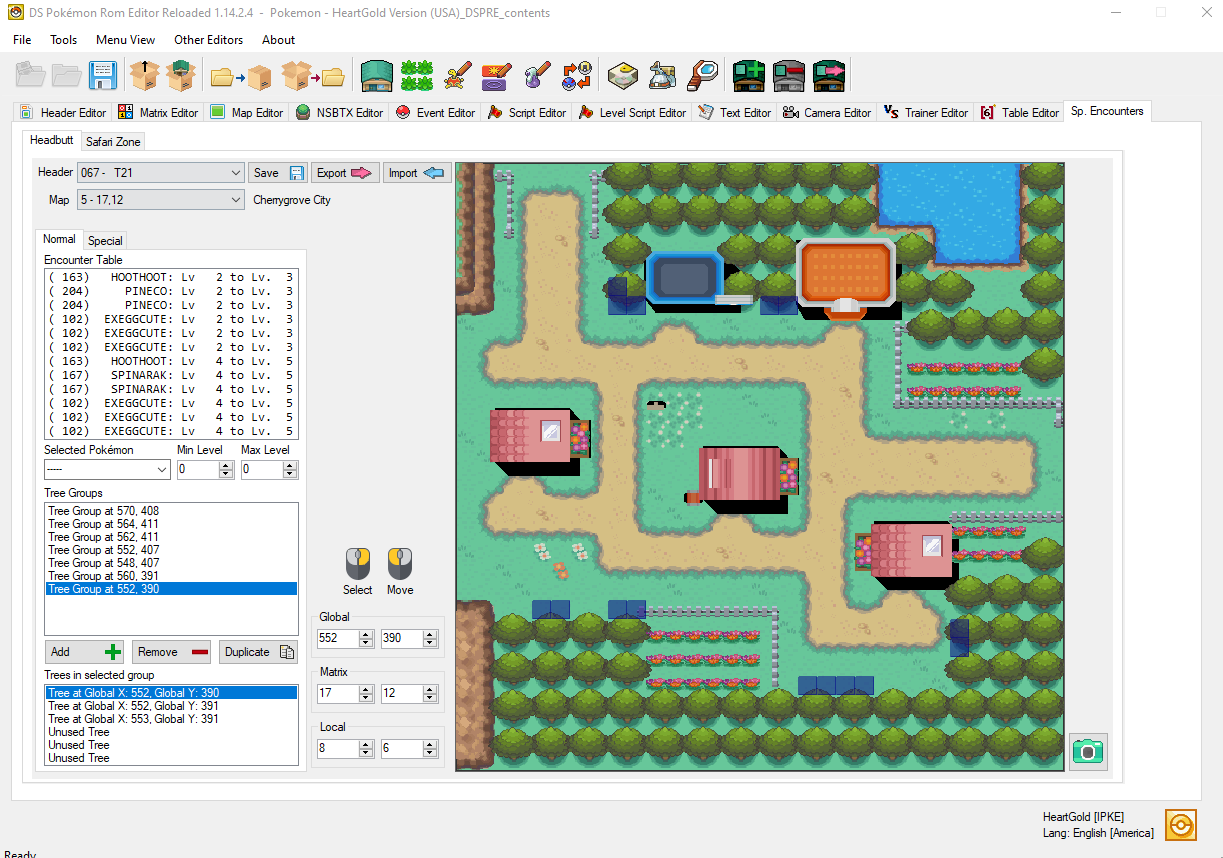
- Select a Tree Group from the list. The coordinates shown here represent the primary tile for that logical tree.
- Once selected, the Trees in Group panel will populate with up to 6 coordinate pairs.
- Update any of the coordinate slots with the desired tile positions.
- You can enter global or Local Coordinates (relative to the individual map) - DSPRE will automatically translate these to Global Coordinates upon saving.
- To remove a tile from the group, set its coordinates to
65535 x 65535(global coordinates).
- Click Save to write changes to the project folder.
Step-by-Step: Adding a New Tree Group
- Open your ROM in DSPRE and navigate to Sp. Encounters -> Headbutt.
- Select the Map Header you want to modify.
- Choose the appropriate sub-tab (Normal or Special).
- Use the Add (+) button in the Tree Groups list to create a new tree group.
- A new entry will appear with empty coordinates (
65535 x 65535global coordinates). - Select the new tree group and follow the "Editing Tree Locations" steps above to define the encounter-capable tiles.
- Click Save to write changes to the project folder.
Step-by-Step: Removing a Tree Group
- Open your ROM in DSPRE and navigate to Sp. Encounters -> Headbutt.
- Select the Map Header you want to modify.
- Choose the appropriate sub-tab (Normal or Special).
- Select the Tree Group you wish to delete from the list.
- Use the Remove (-) button in the Tree Groups list.
- Click Save to write changes to the project folder.
Player-facing Behaviour
- Guaranteed Encounters: If a tree is encounter-capable (listed in a map's Tree Group data), it will always yield an encounter when headbutted. There are no "misses" for valid trees.
- Repel Proof: Headbutt encounters are not blocked by Repel.
- Empty Trees: If a tree's front tile coordinates are missing from the map's Tree Group data, no encounters are generated when it is headbutted, even if the map permissions are correct.
Hex Editing
Editing Headbutt data directly (hex editor method)
Headbutt encounter data is stored in the universal archive, which is identical for both HeartGold and SoulSilver:
data/a/2/5/2 (NARC Index 254)
Each member file in this NARC corresponds to a Map Header ID. If a map has no Headbutt support, its file is a 4-byte stub (00 00 00 00).
File Layout
A valid Headbutt data file follows this structure:
| Offset | Content | Size |
|---|---|---|
0x00 | Normal Tree Groups Count | 1 byte |
0x01 | Padding (0x00) | 1 byte |
0x02 | Special Tree Groups Count | 1 byte |
0x03 | Padding (0x00) | 1 byte |
0x04 | Encounter Data (3 sets of 6 slots) | 72 bytes |
| offset for the first normal tree | Normal Tree Group Coordinates | 24 bytes per group |
... | Special Tree Group Coordinates | 24 bytes per group |
Slot Structure (4 bytes)
Each encounter slot consists of 4 bytes:
AA AA BB CC
AA AA: Species ID (uint16, little-endian)BB: Min Level (uint8)CC: Max Level (uint8)
Tree Group Structure (24 bytes)
Each tree group contains 6 coordinate pairs (4 bytes each):
XX XX YY YY
XX XX: Global X coordinate (uint16, little-endian)YY YY: Global Y coordinate (uint16, little-endian)- Unused slots are filled with
FF FF FF FF.
Size Formula
Total file size = 76 + (24 * numNormalGroups) + (24 * numSpecialGroups) bytes.
See Also
- Bulbapedia: Headbutt tree - General overview of the mechanic.
- Serebii: HGSS Headbutt Trees - Detailed location-based encounter list.
- Wiki: HGSS File Structure - Technical reference for HGSS binaries.
- pret/pokeheartgold - headbutt.c - Technical implementation details.